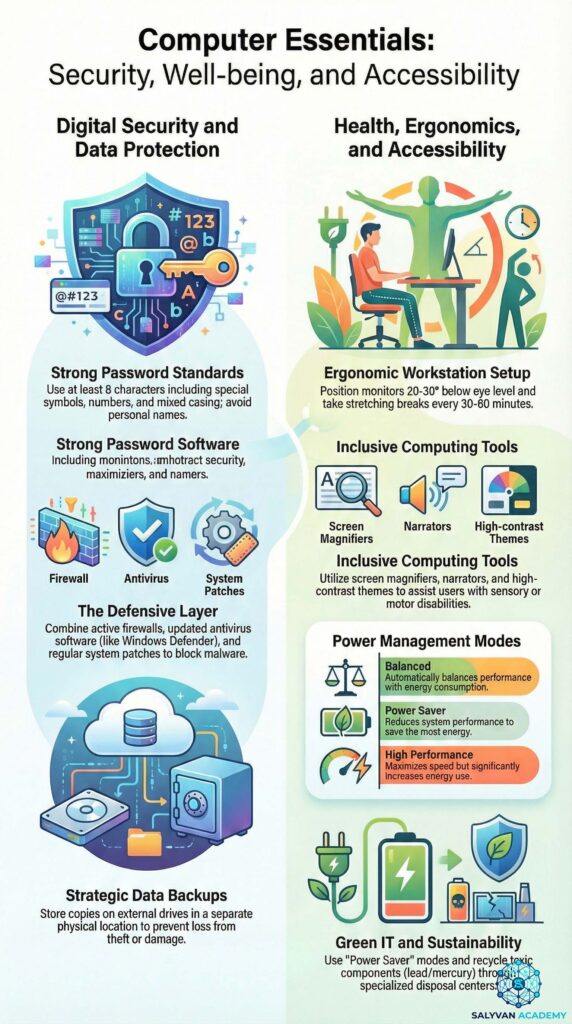
Welcome to the tenth lesson of the “Computer Essentials: Digital Literacy” course. Until now, we have learned how to use the computer as a productivity tool. Now, we must learn how to protect it—and, more importantly, how to protect ourselves.
Cybersecurity is no longer a topic reserved for experts: every day, our personal, financial, and professional data are exposed to concrete risks. In parallel, prolonged use of technology impacts our physical health and the environment. In this Guide to Digital Security and Well-being, we will combine cybersecurity with ergonomics and sustainability (Green IT), providing you with a holistic approach to living a healthy and secure digital life.
Being an expert user means knowing how to navigate the digital sea without sinking. It means knowing how to recognize a virus before it infects the system, creating unbreakable passwords, and working for hours at a PC without destroying your back or eyesight. This lesson is your shield against the threats of both the virtual and physical worlds.
1. Security Policies: Access and Passwords
The first line of defense is access control. An unprotected computer is like a house with the front door left open.
Authentication and Privileges
Every user must have their own User ID and a personal Password.
- Principle of Least Privilege: Not all users should be “Administrators.” Limiting the privileges of standard accounts drastically reduces the risk that malware can install itself or modify critical system files.
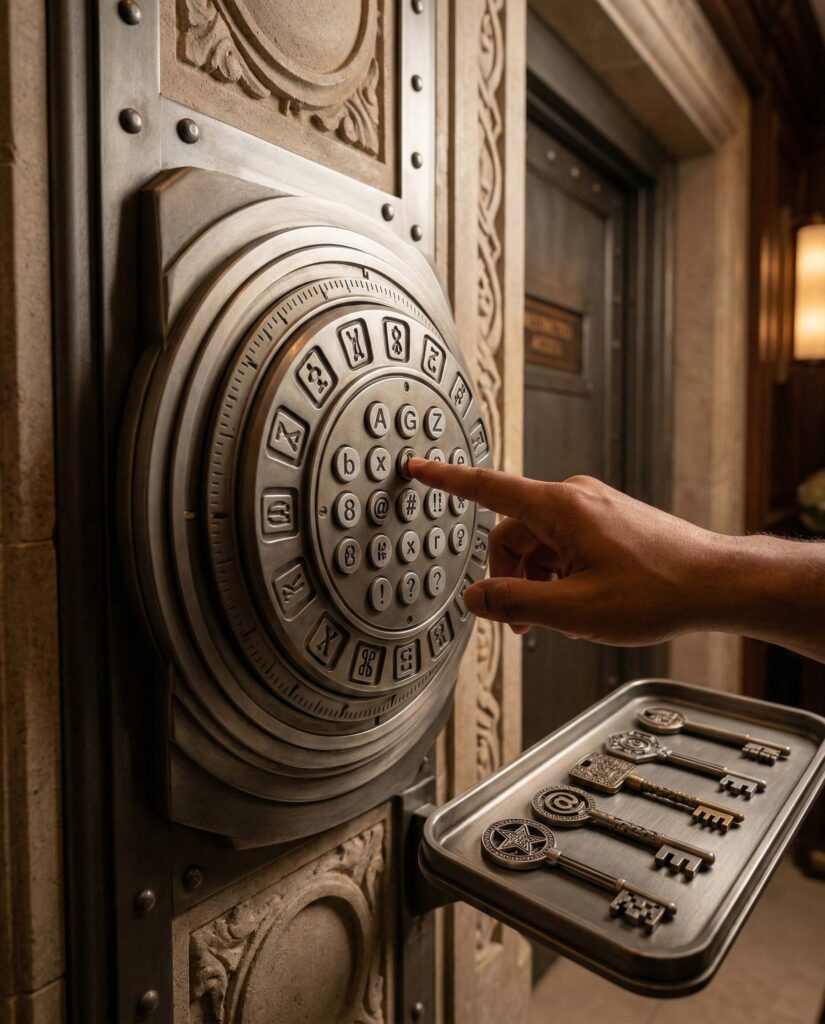
The Anatomy of a Secure Password
“123456” or “password” are invitations for hackers. A robust password must follow precise rules:
- Length: At least 8 characters (12 or more is recommended).
- Complexity: It must include uppercase letters, lowercase letters, numbers, and special characters (e.g.,
! @ # ?). - Non-Deducibility: Do not use names of relatives, birth dates, or words found in the dictionary (these are easily cracked with “dictionary attacks”).
- Uniqueness: Never use the same password for different services. If one site is breached, all your accounts are at risk.

2. Perimeter Defense: The Firewall
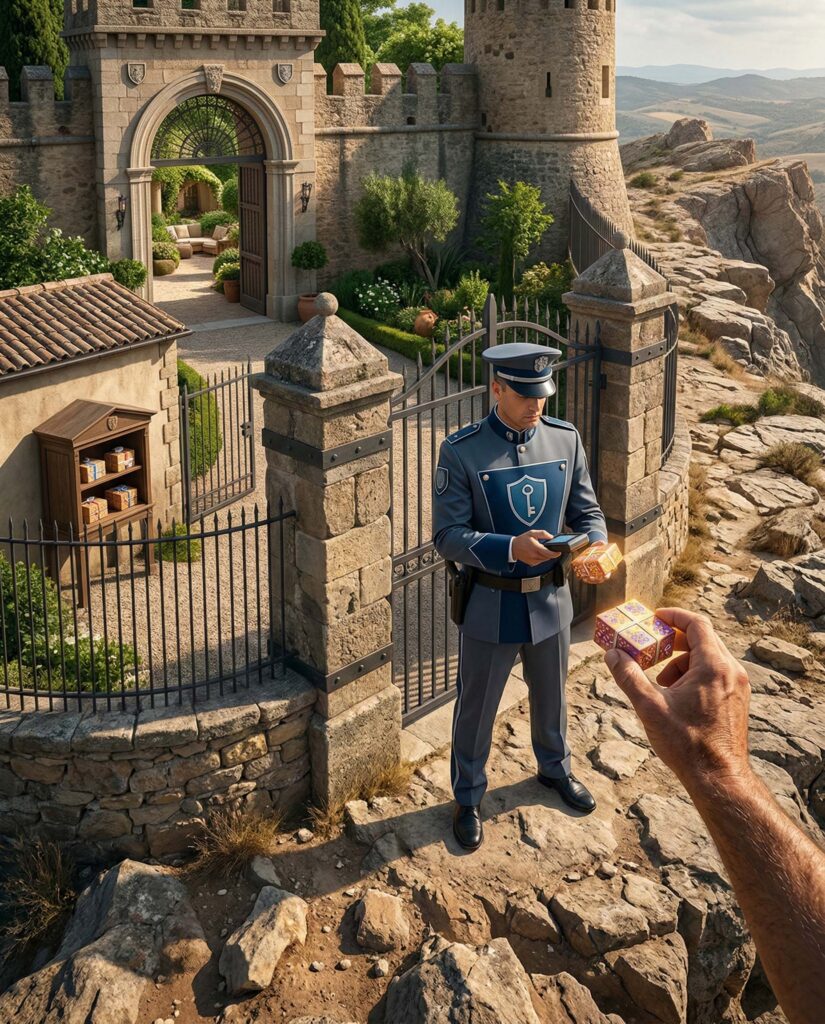
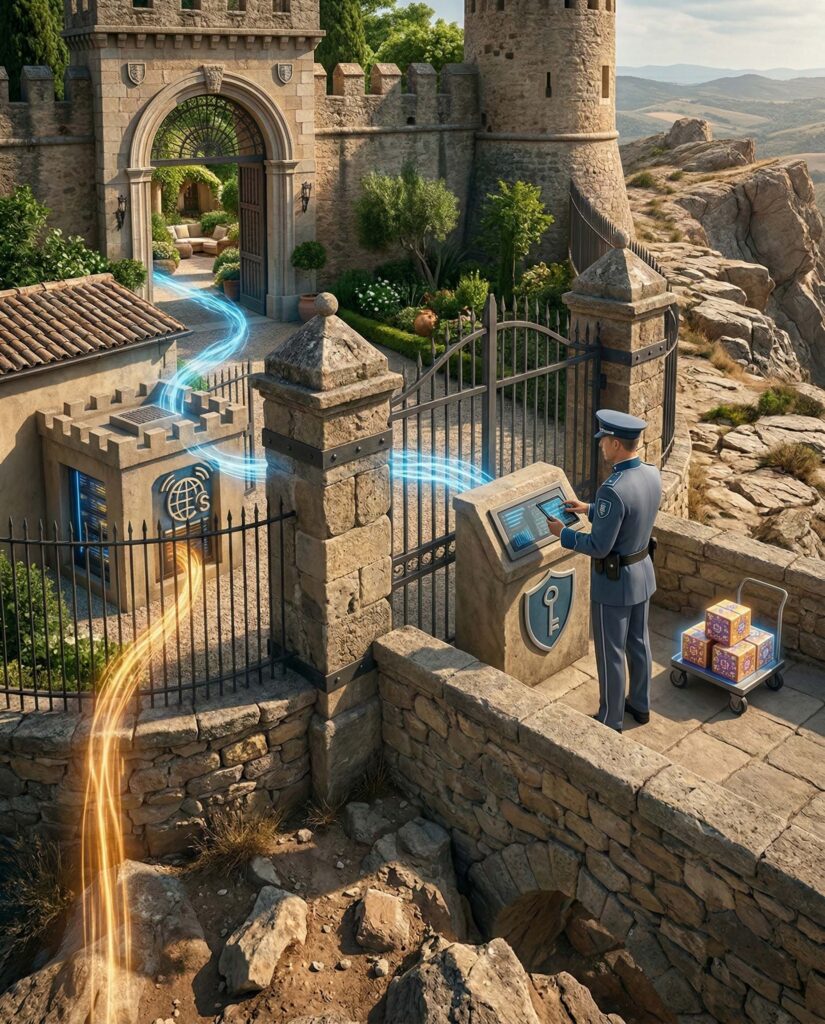
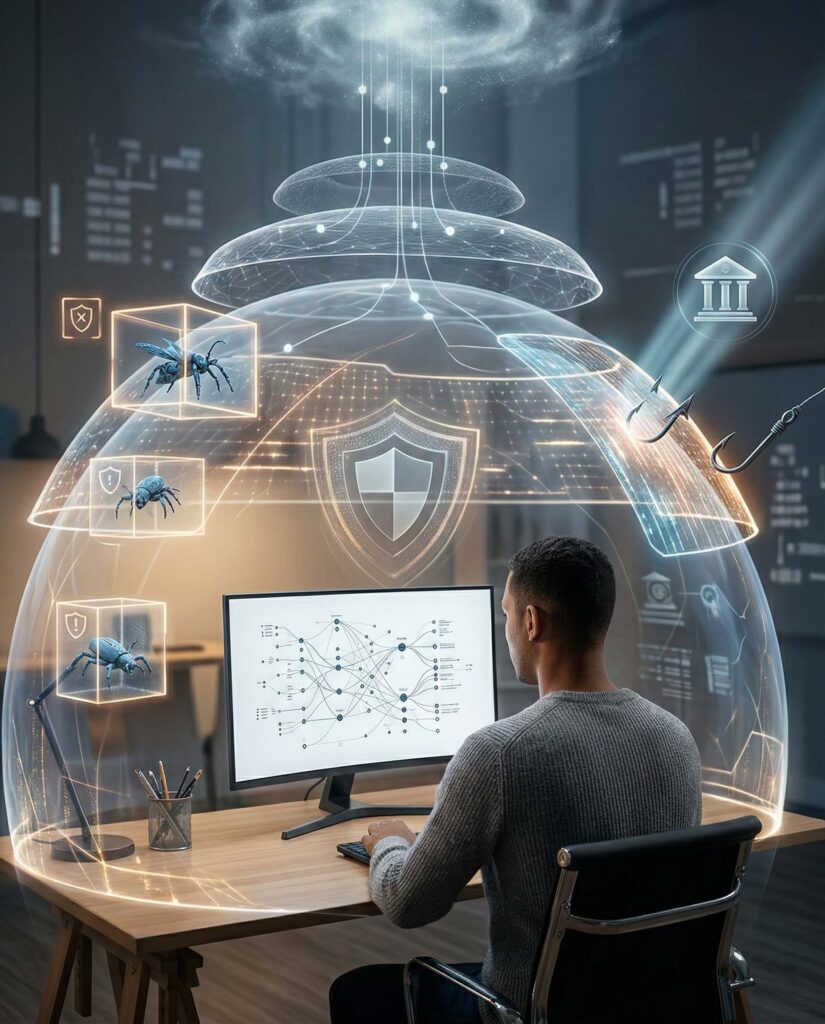
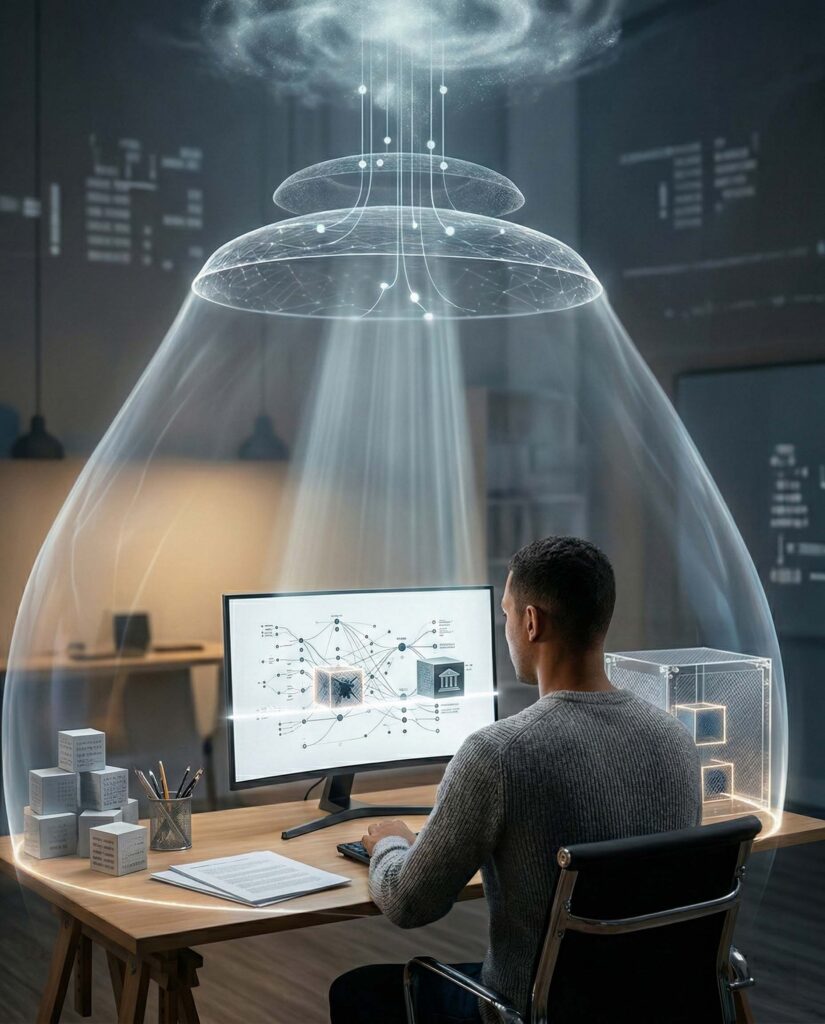
If the password protects local access, the Firewall protects against network intrusions. Imagine it as a digital customs officer checking every packet of data coming in and going out. Its job is to block unauthorized connections, separating your secure internal network (LAN) from the insecure external network (Internet/WAN).
- Demilitarized Zone (DMZ): In advanced contexts, a buffer zone is created to host services that must be accessible from the outside (like a web server), while keeping the sensitive internal network isolated.
3. Data Salvation: The Backup
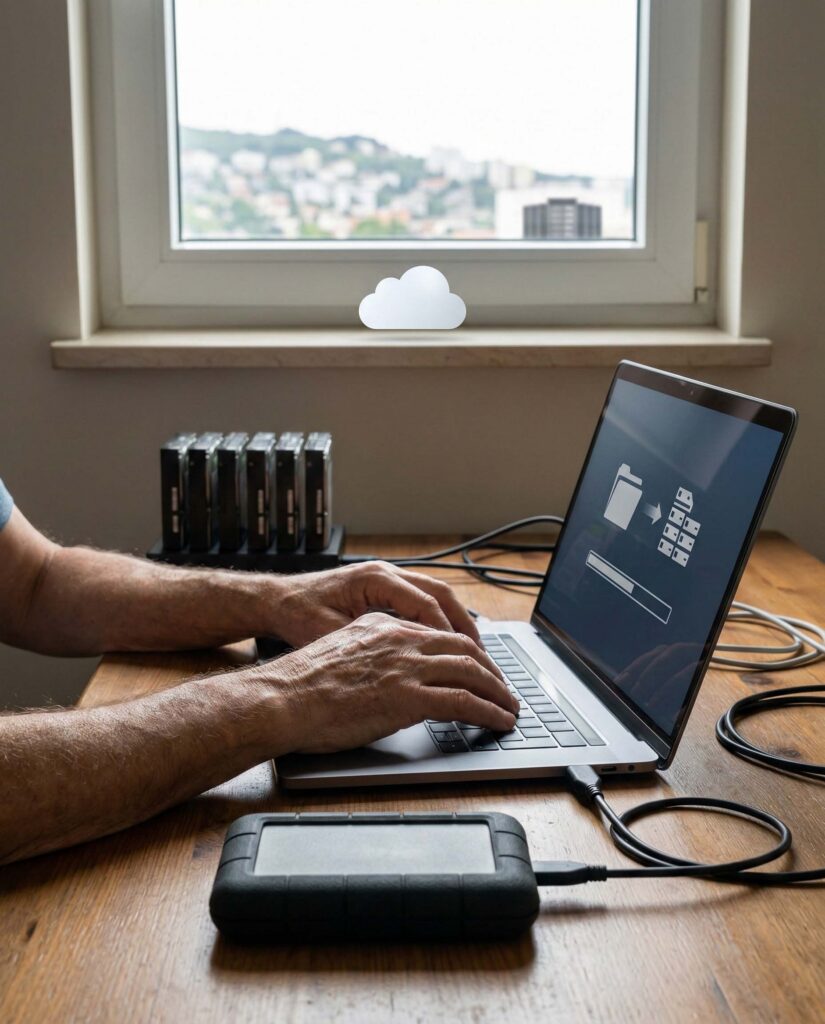
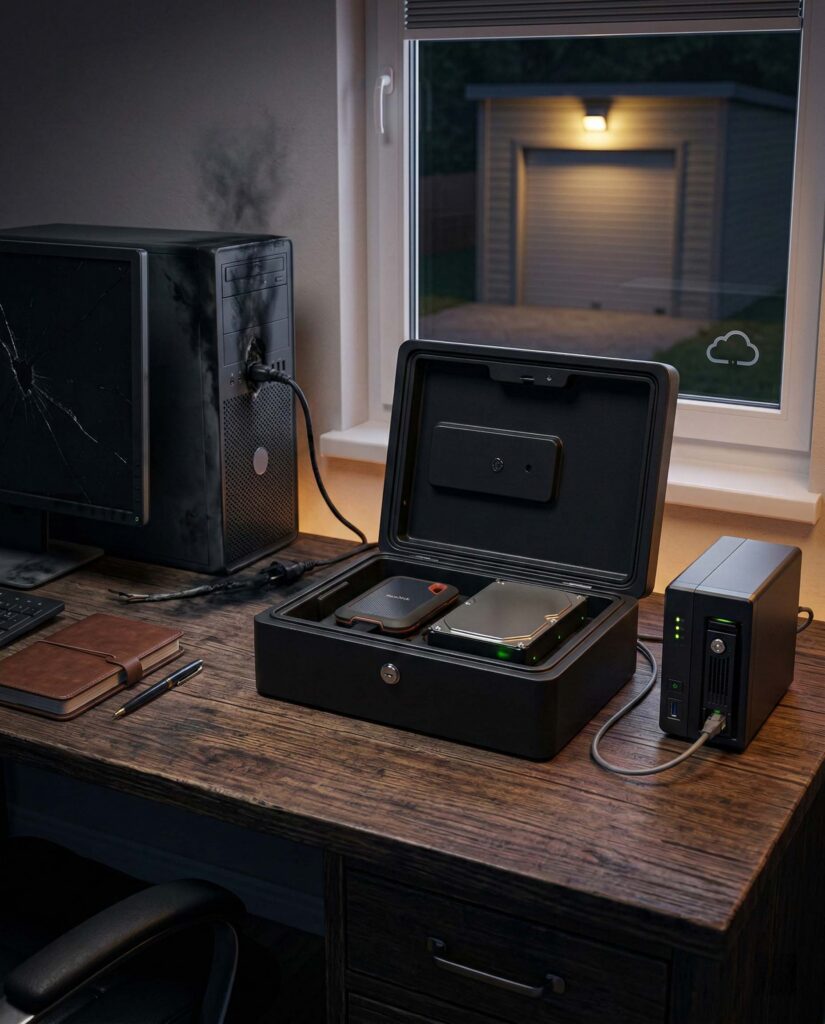
No system is infallible. Theft, power surges, fires, or hardware failures can wipe out years of work in an instant. The only valid insurance is a Backup.
Backup Strategy
A backup is a security copy of your data.
- Where: External hard drives (fast and high capacity) or Cloud (secure against local physical disasters).
- How: USB flash drives are useful for transporting data but less reliable for long-term archiving.
- The 3-2-1 Rule: Keep 3 copies of your data, on 2 different media types, with 1 copy stored in a different physical location (off-site).
4. Software Threats: Malware and Viruses
Malware (Malicious Software) is a program created to damage or exploit a system. Knowing the types helps you defend against them.
The Malware Zoo
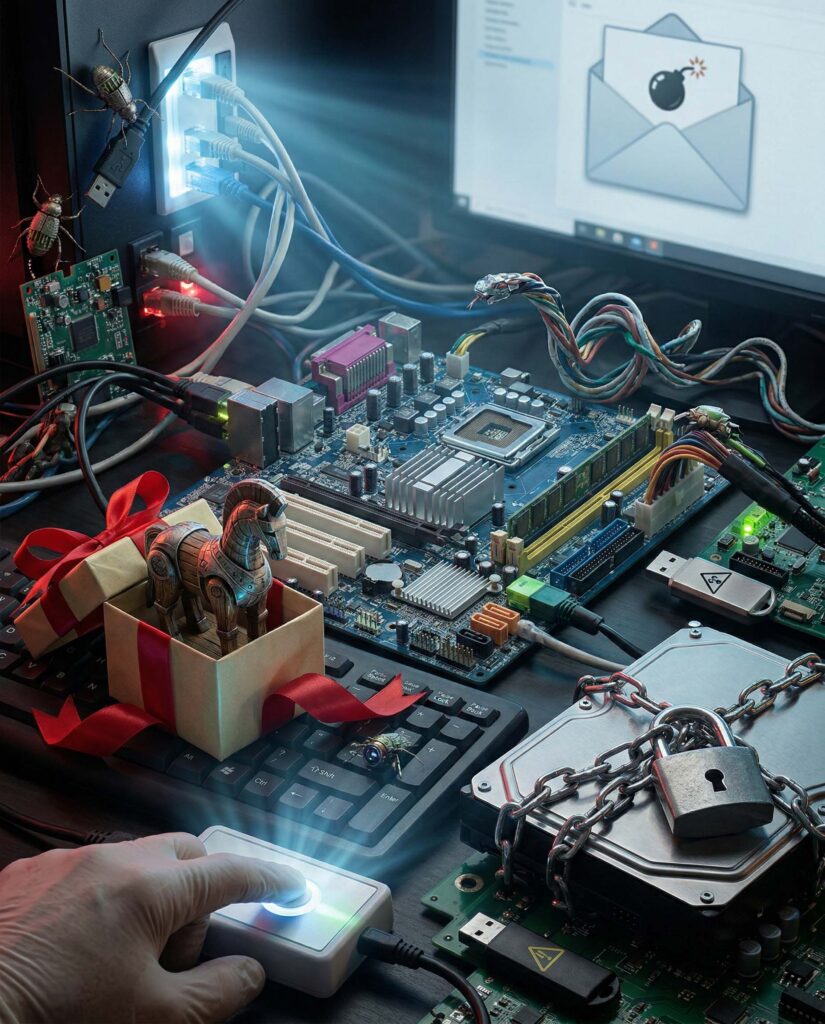
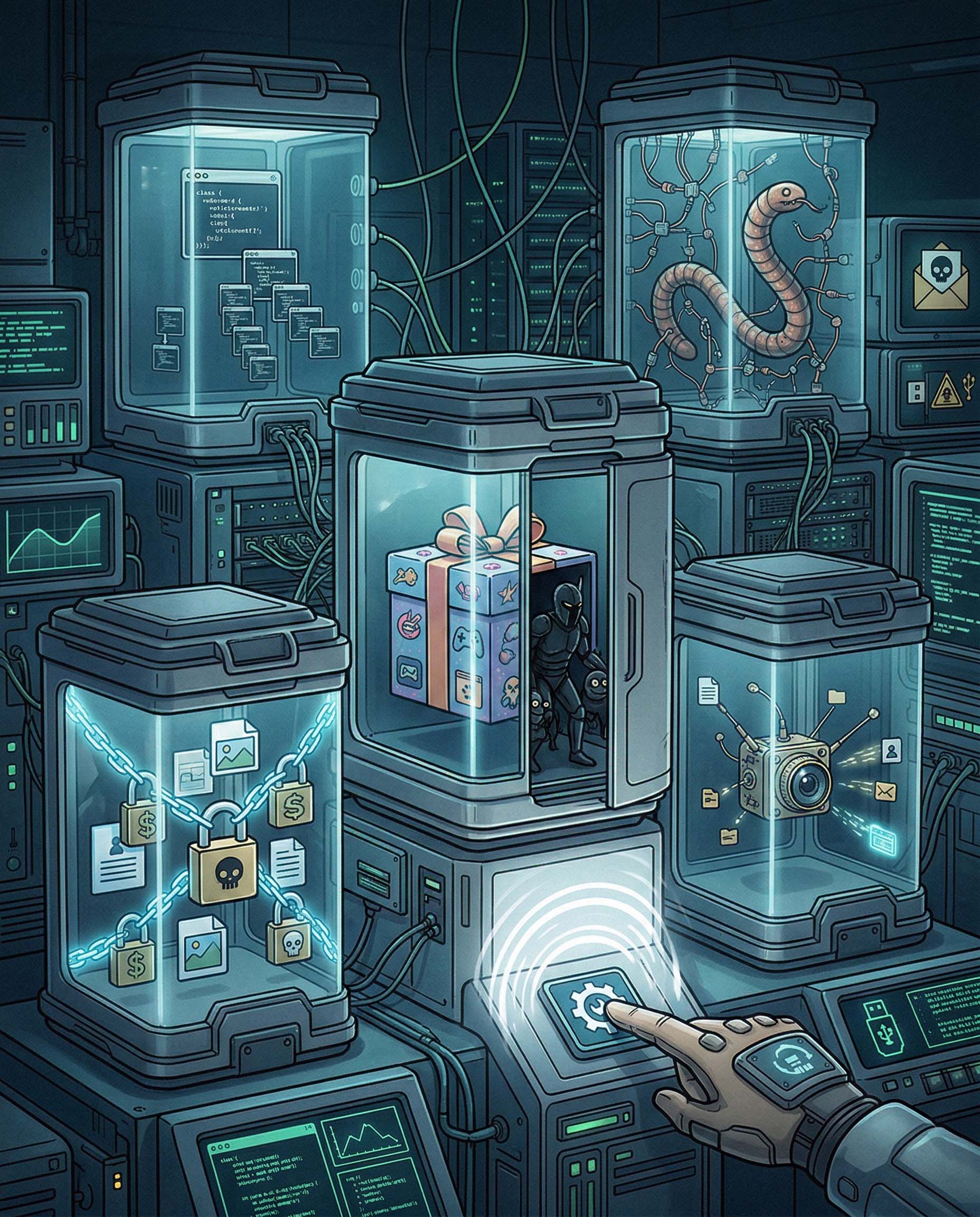
- Virus: Attaches itself to a legitimate program and replicates when that program is executed.
- Worm: Spreads autonomously across a network by exploiting operating system vulnerabilities, without needing human intervention.
- Trojan Horse: Masquerades as useful software (e.g., a free game) to trick the user into installing it, thereby opening a backdoor for hackers.
- Spyware: Spies on the user, collecting passwords or browsing habits to send to third parties.
- Ransomware: Encrypts your files and demands a ransom payment to unlock them.
Infection Vectors
Malware travels via email (infected attachments), USB drives, or compromised websites. Regularly updating software (Update) is vital: developers release patches specifically to close security holes (bugs) that malware exploits.
5. Defense Tools: Antivirus and Windows Defender
To protect yourself, you need an Antivirus, software that monitors the system in real-time.
- Windows Defender: Integrated into Windows 10/11, it offers excellent protection at no extra cost. It includes real-time scanning, cloud protection, and a firewall.
- Actions: If it detects a threat, the antivirus blocks it and puts it in Quarantine (isolation), preventing it from causing damage while waiting for the user to decide whether to delete it.
Web Security
Modern browsers (like Edge or Chrome) integrate filters such as SmartScreen to block Phishing sites (scam sites that mimic banks or post offices) and Do Not Track features to limit advertising tracking.
6. Ergonomics and Health: Working Without Pain
Computing should not wear out the body. Ergonomics is the study of how to adapt the work environment to the human being.
The Ideal Workstation
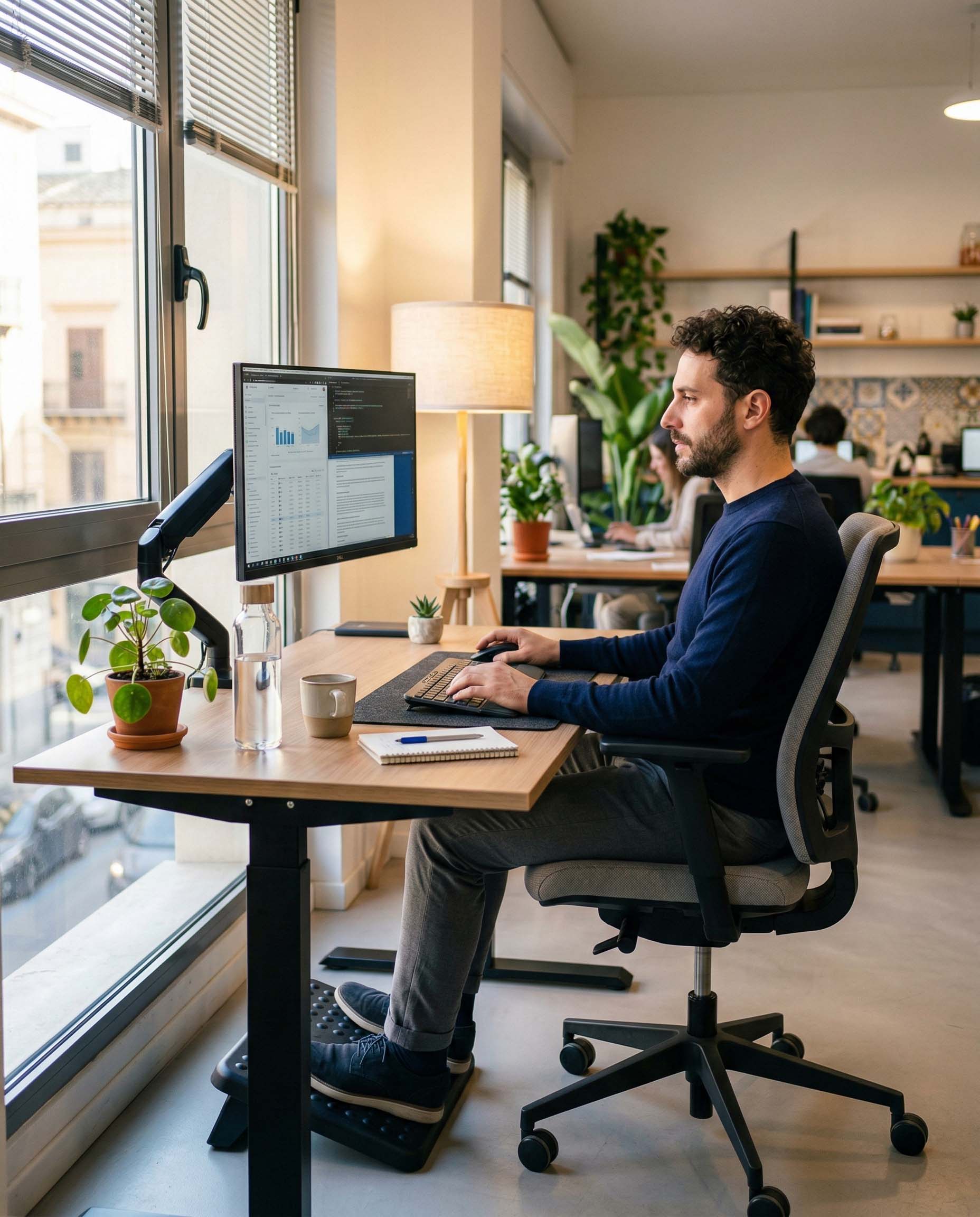
- Lighting: Never have a window directly in front of or behind the screen (causes glare or silhouette). Light should come from the side. Use lamps with diffusers.
- Monitor: The top edge should be at eye level (or slightly below). Your gaze should be angled 20-30° downward.
- Seating: The chair must support the lumbar region. Feet must rest firmly on the floor (or on a footrest).
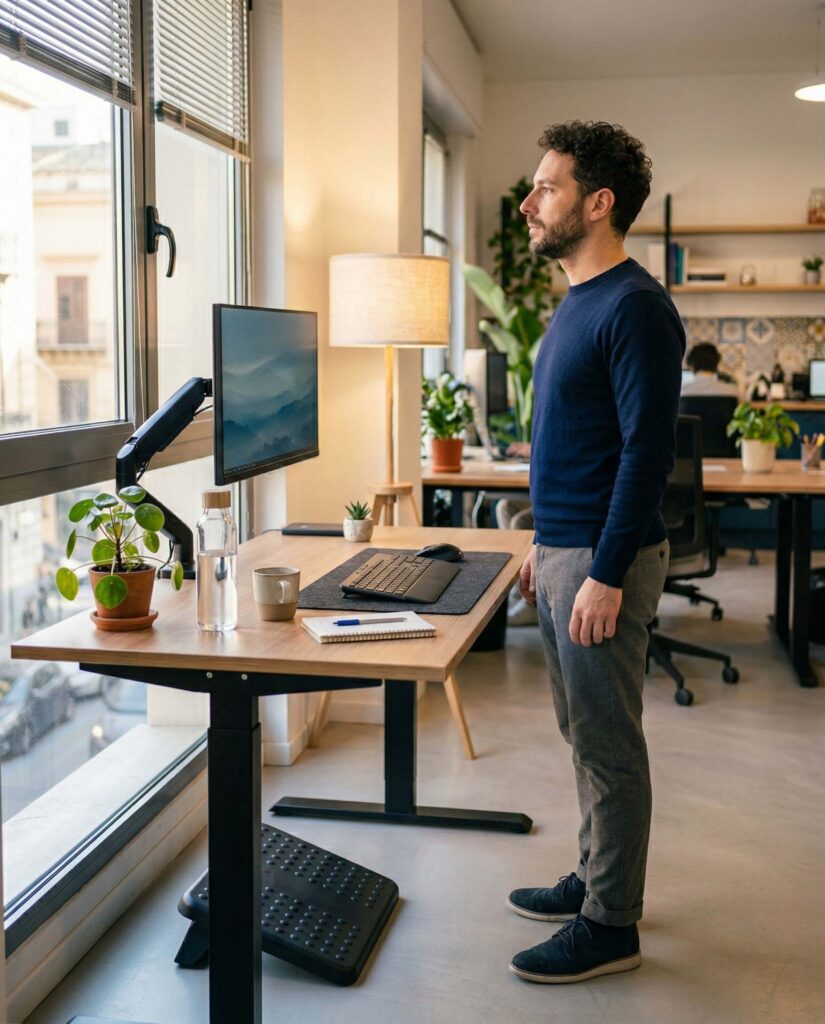
- Breaks: The 20-20-20 Rule: Every 20 minutes, look at something 20 feet (6 meters) away for 20 seconds. Stand up every hour to stretch your legs.
7. Green IT: Sustainability and Disposal
Computers have a significant environmental impact. Green IT promotes the eco-sustainable use of technology.
Energy Saving
Do not leave the PC on unnecessarily.
- Power Options: Configure Windows to turn off the screen after 5-10 minutes and suspend the system after 30 minutes of inactivity. This reduces the electricity bill and extends hardware life.
WEEE: Electronic Waste
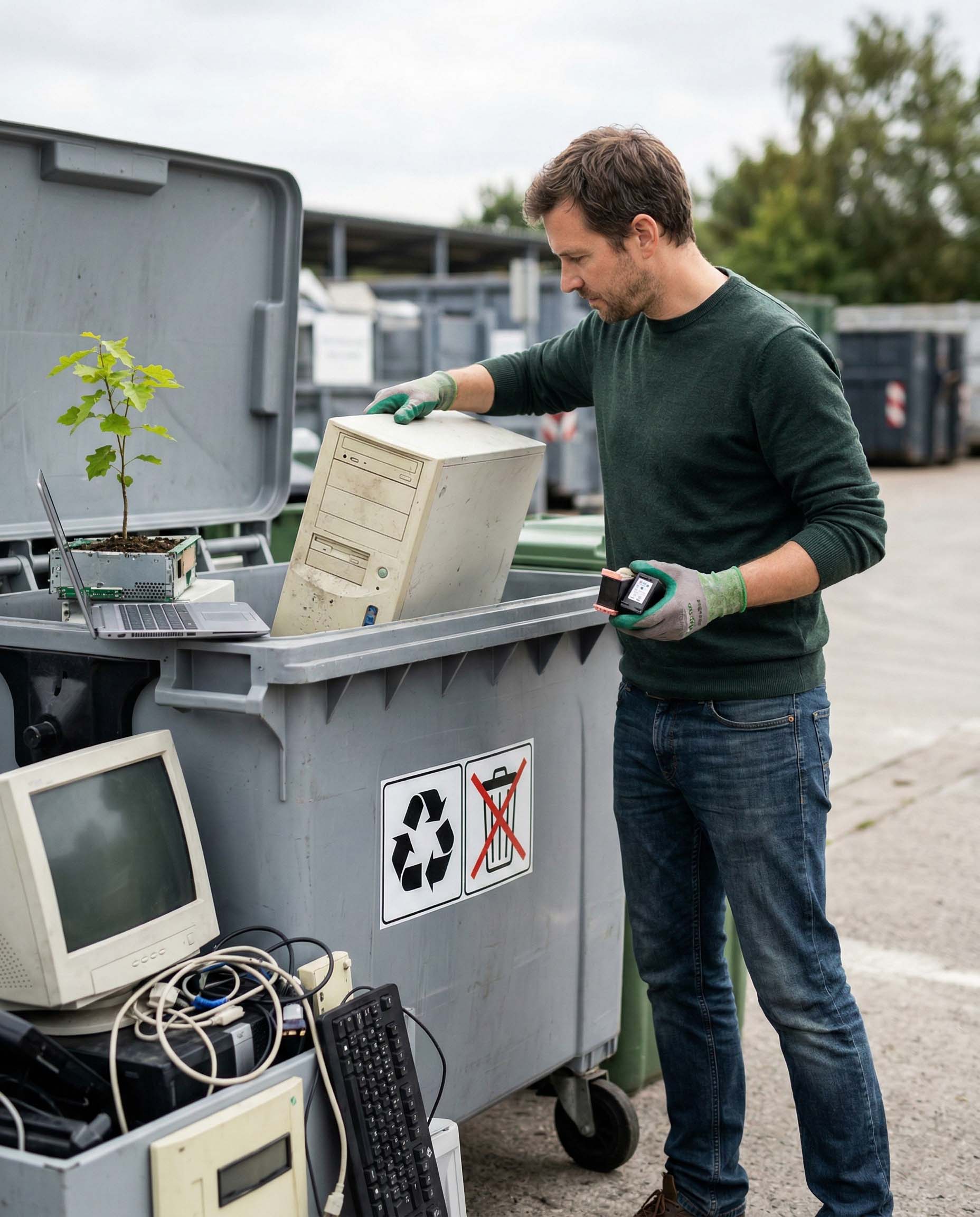
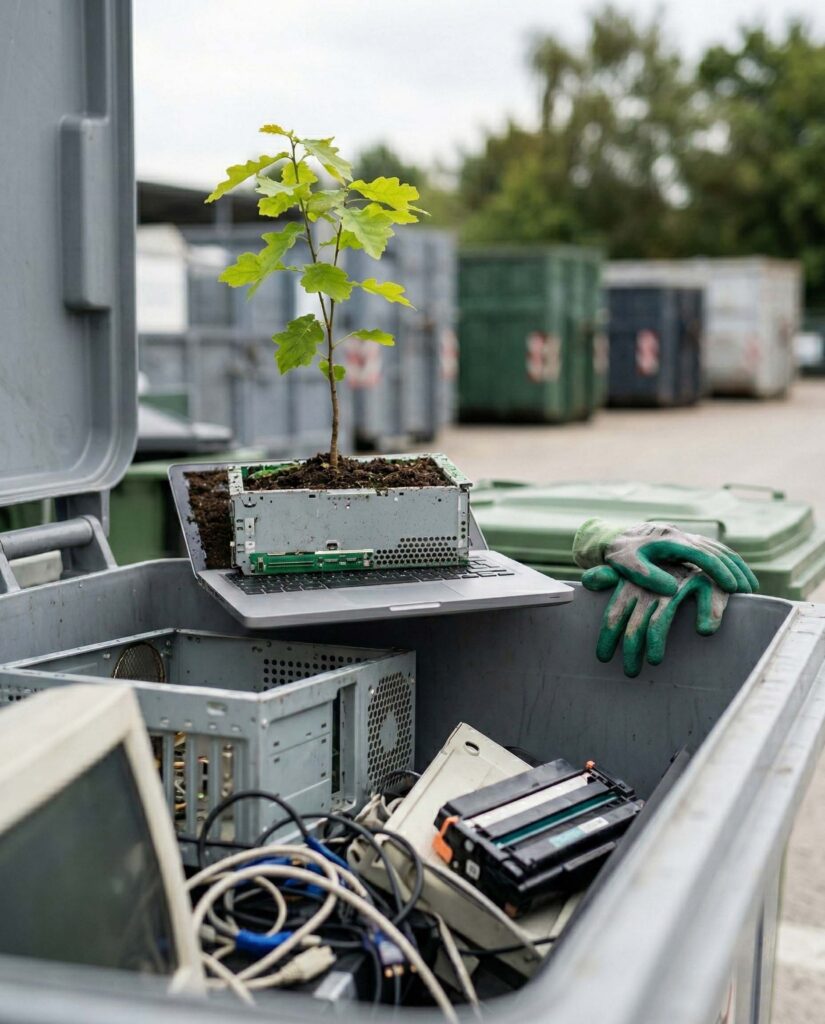
A computer contains lead, cadmium, mercury, and rare earth elements. It must never be thrown in general trash!
- Disposal: It must be taken to municipal electronic waste collection centers or returned to the retailer (under “One-to-One” or “One-to-Zero” take-back regulations).
- Printer Cartridges: Must be disposed of in specific bins or refilled to reduce plastic waste.
8. Accessibility: Technology for Everyone
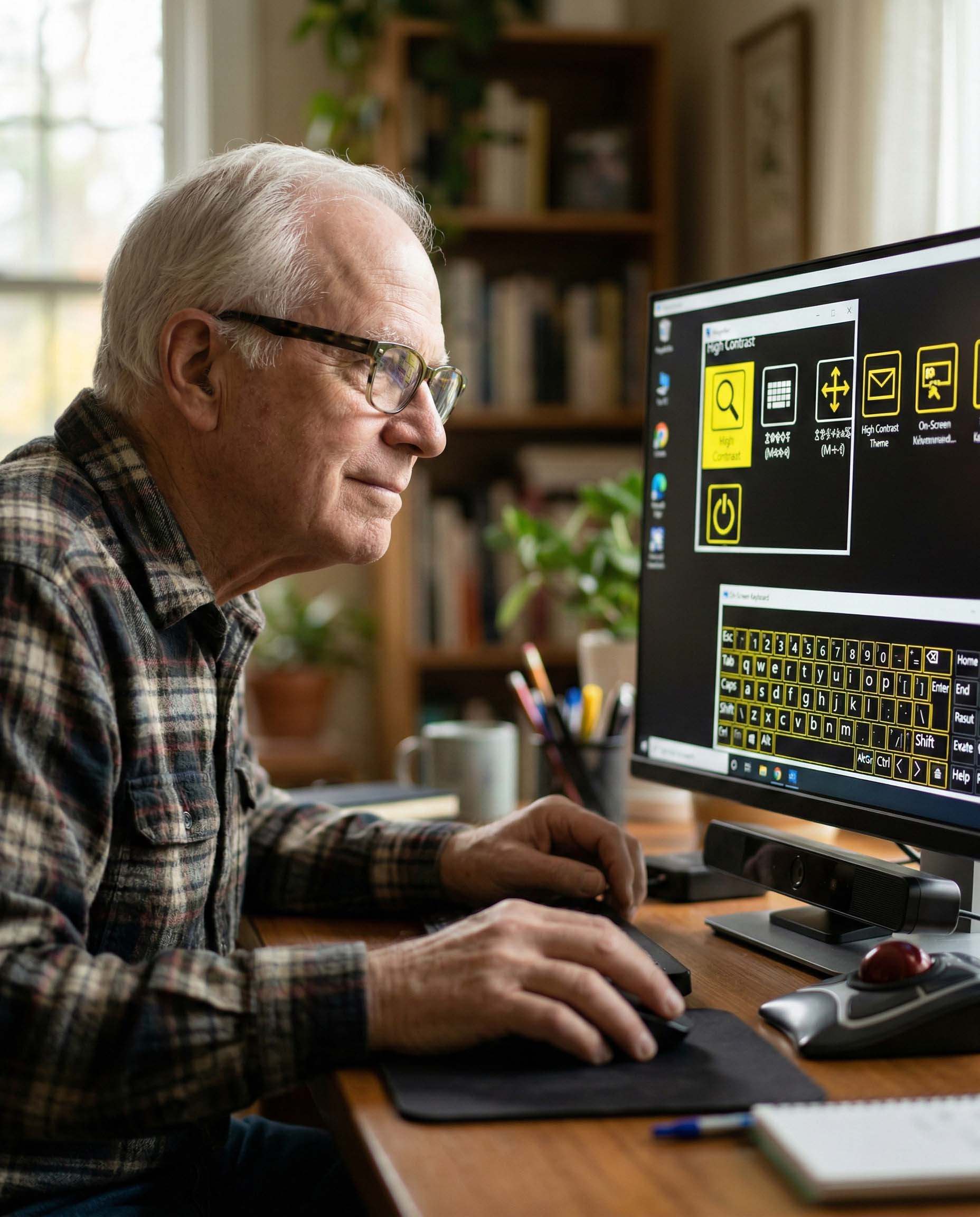
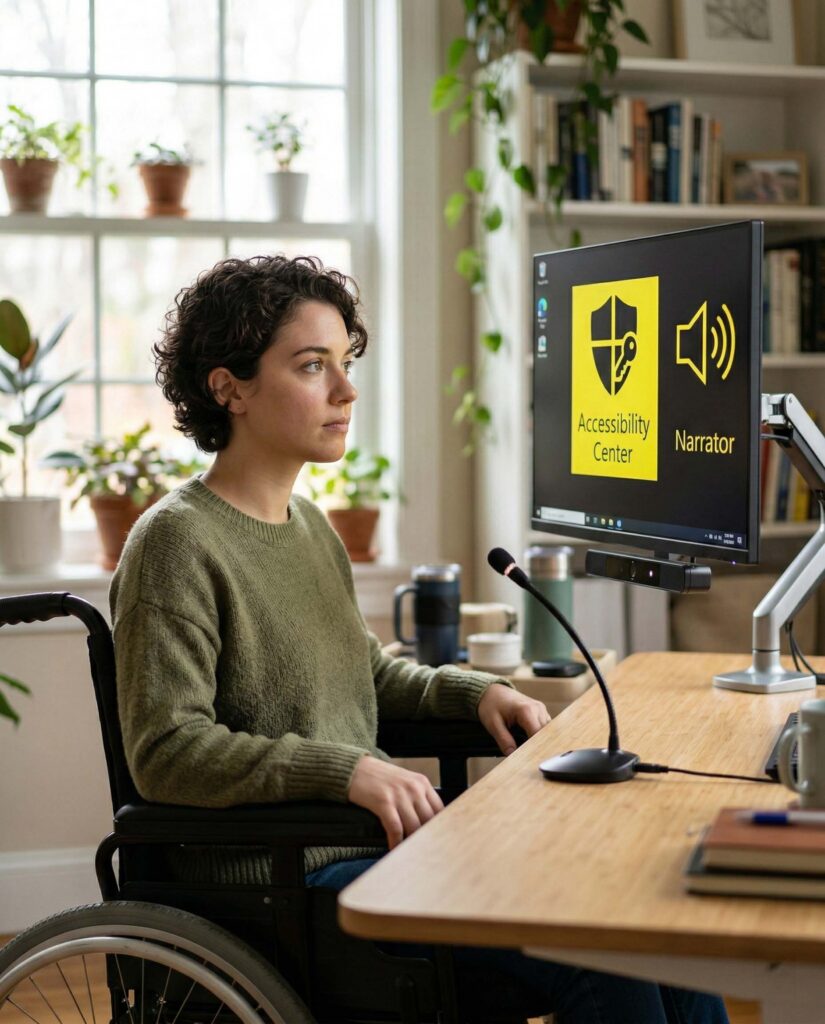
Digital technology is a great social leveler, provided it is accessible. Windows includes the Ease of Access Center to help those with visual, auditory, or motor disabilities.
- Narrator: Reads aloud what appears on the screen.
- Magnifier: Zooms in on parts of the desktop.
- On-Screen Keyboard: Allows typing using a mouse or eye-tracking systems.
- High Contrast: Special themes for the visually impaired.
Conclusion
We started by understanding what a bit is and arrived at configuring secure networks and ergonomic workstations. You now possess not only the technical skills to use a computer but the critical awareness to do so safely, ethically, and healthily.
Computing is a continuous journey: technology changes, but the foundations you have built in this course will allow you to adapt to any future innovation.
Lesson Glossary
- Firewall: A security barrier between an internal and external network.
- Phishing: Online fraud carried out via deceptive emails to steal sensitive data.
- WEEE (RAEE): Waste Electrical and Electronic Equipment.
- Bug: An error in a program’s code that can cause malfunctions or vulnerabilities.
Practical Exercise
- Password Check: Verify if your email password meets security criteria (8+ characters, symbols, numbers). If not, change it.
- Backup: Copy your most important documents to a USB drive or Google Drive/OneDrive.
- Scan: Open “Windows Security” and run a “Quick Scan” to check for threats.
- Ergonomics: Sit at your desk and check your posture: are your eyes aligned with the top edge of the monitor? Do your arms form a 90° angle?
Congratulations on completing lesson ten! Are you ready to move on to the next module?
INFOGRAPHIC: