
Welcome to the eighth lesson of the “Computer Essentials: Digital Literacy” course. Up to this point, we have built the foundations: we know the hardware, we have mastered the interface, and we can manage applications. Now, we enter the true operational heart of the computer: Data Management.
Imagine your hard drive as an immense library. Without a precise cataloging system (the File System) and without the skills to navigate it, finding the right piece of information would be impossible. In this lesson, I will teach you not only how to create folders, but how to structure your digital archive professionally, use compression to save space, and leverage Windows’ advanced search functions.
1.1. The Logical Structure: The File System
Every piece of data stored on your computer resides in a File. To avoid chaos, the operating system organizes these files through a logical structure called the File System.
The Inverted Tree Hierarchy
Imagine a tree turned upside down:
- The Root: This is the origin of everything, usually designated as the *C:* drive.
- The Branches (Folders/Directories): Containers used to group files or other folders (sub-folders).
- The Leaves (Files): The individual documents, images, or programs.
This hierarchical structure is visible in the Windows graphical interface through the indentation of icons: the “deeper” a folder is in the hierarchy (contained within another folder), the further to the right its content is displayed in the list.


2. Esplora File (File Explorer): 2. File Explorer: Your Control Room
The fundamental tool for navigating this structure is File Explorer (accessible via the Start menu or by clicking the yellow folder icon on the taskbar).
Interface Anatomy
- Navigation Pane (Left): Displays the directory tree. Here we find Quick Access (recently used folders or those “pinned” for frequent use), “This PC” (drives), and network resources.
- Workspace (Right): Displays the content of the folder currently selected in the navigation pane.
- Address Bar (Top): Shows the exact path (e.g.,
This PC > Documents > Work). By clicking on the arrows within the path, you can quickly navigate to upper-level folders. - Status Bar (Bottom): Provides immediate data, such as the total number of items in the folder and the number of selected files.
The Ribbon
Introduced to provide consistency with Microsoft Office, the Ribbon groups commands into tabs:
- Home: Basic operations (Copy, Paste, Move, New Folder, Delete).
- Share: Tools to send files via email or create compressed archives (Zip).
- View: Crucial for customizing the experience. Here you can activate the Preview Pane (to see file contents without opening them), show File Extensions (vital for security), and change the layout (Large Icons, List, Details).
Professional Note: The “Details” view is the most information-rich layout. It allows you to sort files by clicking on column headers (Name, Date, Size) and even to filter and group results for better analysis.


3. File Operations: Creation, Selection, and Manipulation
Creation and Renaming
- New Folder: Right-click in an empty area > New > Folder (or use the button in the Home tab).
- Rename: Right-click > Rename, or select the file and click once on the name (do not double-click!).
Advanced Selection Techniques
To act on multiple files simultaneously, the mouse alone is often insufficient. You must use the keyboard:
- Contiguous Selection (Shift): Click the first file, hold down the Shift key, and click the last file. All files in between will be selected.
- Non-Contiguous Selection (Ctrl): Hold down the Ctrl key and click on individual files you wish to select, skipping the ones you don’t need.
- Select All: Ctrl + A or the button in the Home tab.
Drag & Drop: Moving vs. Copying
Dragging files is intuitive, but it hides a fundamental implicit rule:
- Same Drive: If you drag a file from one folder to another on the same disk (e.g., from Documents to Desktop), the file is MOVED.
- Different Drives: If you drag a file to a USB drive (or a different disk partition), the file is COPIED (the original remains).
- Manual Control: To avoid errors, drag using the Right Mouse Button. Upon release, a context menu will appear explicitly asking: “Copy here” or “Move here.”


4. Search: Finding the Needle in the Haystack
With thousands of files, knowing how to search effectively is vital.
The Search Bar and Wildcards
The search box in the top right of File Explorer is powerful. You can search by name, but also by content (within text documents).
- The Asterisk (*): The ultimate wildcard. Searching
*.pdfwill find all PDF files. SearchingWork*will find “Work2023”, “Work_in_progress”, etc. - The Question Mark (?): Replaces a single character. Useful for minimal variations (e.g.,
Photo0?.jpgfinds Photo01, Photo02, but not Photo100).
Cortana and Global Search
From the taskbar, the search extends to the web and apps. Cortana integrates local results with Bing, offering immediate answers (weather, definitions) without needing to open the browser.


5. Space Management: Size and Compression
Analyzing Properties
Folders do not display their size directly in the list view. To find it: Right-click > Properties. Here you will see the occupied space, the number of files contained, and attributes (Hidden, Read-only).
Compression (Zip)
Compressing files serves two purposes: reducing occupied space and grouping many files into a single “package” that is easier to send via email.
- Create a Zip: Select the files > Share Tab > Zip (or Right-click > Send to > Compressed (zipped) folder).
- Extract: Right-click on the Zip file > Extract All.
Golden Rule: Text files compress significantly. Files that are already compressed at the source (like JPEG images or MP4 videos) will not significantly reduce in size when zipped.


6. The Recycle Bin and Secure Deletion
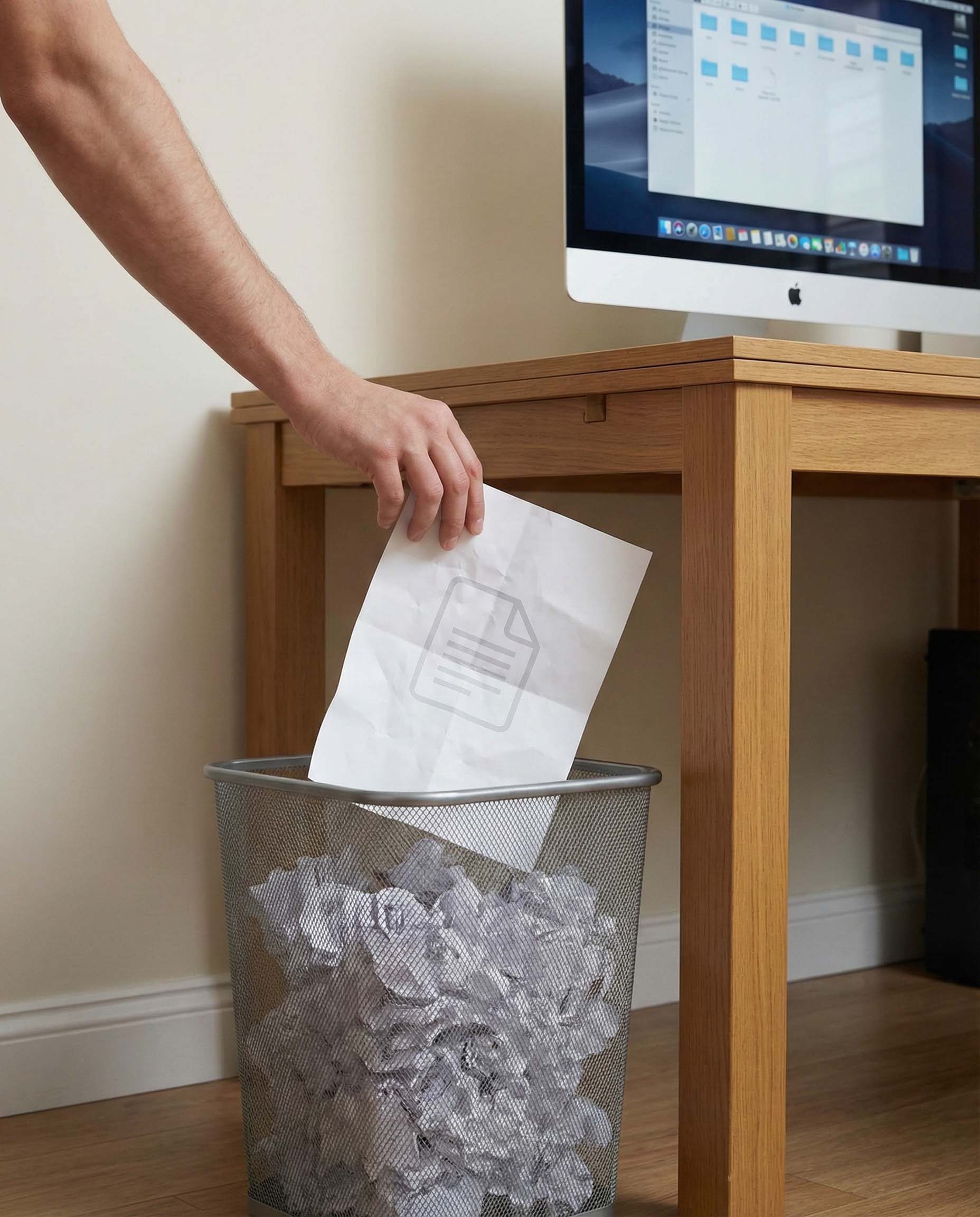
The Recycle Bin is your safety net. When you press the Delete key, the file is not erased but moved to this special folder.
- Restore: Open the Recycle Bin, select the file > Restore. It will return exactly to where it was.
- Empty: Right-click the Recycle Bin icon > Empty Recycle Bin. Warning: From this point on, recovery is only possible using specialized forensic software, as the disk space is marked as “free and overwritable.”

7. Storage Strategies: Disks and Cloud
Where do we put our data?
- Internal Drives (HDD/SSD): Fast, used for the operating system and installed programs.
- External Drives (USB): For backups and transporting large amounts of data.
- Optical Drives (CD/DVD/Blu-ray): Obsolete for daily use, but useful for “cold” long-term archiving (data cannot be easily modified).
- Cloud Storage (OneDrive, Google Drive, Dropbox): The modern solution. Files reside on secure remote servers.
- Advantages: Access from any device, automatic backup, protection against local hardware failure.
- Synchronization: A folder on your PC “mirrors” the online one. If you add a file there, it is automatically uploaded.


Conclusion
File organization is the art of knowing where every single bit of your digital life is located. In this lesson, we learned how to structure folders hierarchically, how to use advanced search to save time, and how to protect data via backups and the cloud.
These skills are the foundation for any professional activity. A well-maintained archive is the first step toward stress-free productivity.
Lesson Glossary
- Directory: The technical term for “Folder.”
- Extension: The final part of a filename (e.g.,
.docx,.jpg) that tells the operating system which program to use to open it. - Drag & Drop: The action of clicking, holding, dragging, and releasing an item.
- Wildcard: A symbol used in search to represent unknown characters (* or ?).
Practical Exercise
- Create a nested folder structure:
Documents > IT Course > Lesson 8. - Create three empty text files in the
Lesson 8folder, select them all using the Ctrl key, and compress them into a.zipfile. - Use Windows search with the asterisk to find all images (
*.jpg) present in your Pictures folder. - Check how much free space is left on your C: drive (This PC > Right-click on the drive > Properties).
Congratulations on completing the eighth lesson! Are you ready to move on to the next module?
INFOGRAPHIC:

