
Welcome to the third lesson of our Computer Essentials module. In previous sessions, we explored the “digital world” and the internal anatomy of the computer (CPU, RAM, Motherboard). However, a computer, no matter how powerful, would remain an isolated entity without tools that allow it to receive instructions from the outside and communicate results to the user.
In this lesson, we will analyze peripherals: the hardware devices that orbit the central unit, enabling HCI (Human-Computer Interaction). We will also delve into the evolution of external storage and the physical communication protocols known as ports.
1. The Evolution of External Mass Storage
While we previously discussed internal hard drives, the modern digital world demands portability and redundancy. External storage has evolved drastically over the last few decades to meet these needs.
Optical Media: The Decline of an Era
Optical storage, such as CD-ROMs (700 MB) and DVDs (4.7 GB or higher), uses laser technology. A laser beam “reads” microscopic pits on the disc’s surface. These come in Recordable (write-once) and Rewritable (multiple-use) versions. Today, this technology is becoming obsolete; modern laptops have largely eliminated optical drives in favor of online distribution (streaming and direct downloads).
Flash Memory and USB
USB Flash Drives and Memory Cards (SD, microSD) have revolutionized portable storage. Unlike traditional hard drives, they have no moving parts, making them extremely shock-resistant and lightweight. They utilize non-volatile flash memory, a semiconductor technology that retains data even without power.
Network and Cloud Storage
The current frontier is online storage, where we distinguish between two main concepts:
- Network Drives (Servers): In corporate environments, PCs are connected to a central computer (Server) that acts as a shared archive.
- Cloud Storage: Space on the Internet (e.g., Google Drive, OneDrive, iCloud) that allows you to access your files from any device, anywhere there is a connection.


2. Input Peripherals: Entering Data and Commands
Input peripherals are the channels through which the user “speaks” to the computer. They convert physical actions into digital signals that the CPU can process.
The Keyboard: Legacy and Functionality
Derived from the typewriter, the keyboard remains the primary input unit. The most common layout is QWERTY (named after the first six letters on the top left). A modern keyboard is divided into:
- Typing Keys: Letters, numbers, and punctuation.
- Control Keys: (Ctrl, Alt, Esc, Windows/Command) used alone or in combination for shortcuts.
- Function Keys: (F1–F12) for software-specific operations (e.g., F5 to refresh).
- Numeric Keypad: For rapid mathematical data entry.
Pointing Devices: The Mouse and its Variants
The Mouse allows interaction with the Graphical User Interface (GUI) via a cursor.
- Mechanical Mice: Used a rubber ball to track movement (now obsolete).
- Optical/Laser Mice: Detect movement via LEDs or laser sensors, providing millimeter precision.
- Wireless Mice: Eliminate cables by using Radio Frequency (RF) or Bluetooth.
Specialized alternatives include:
- Trackball: A stationary ball moved with the fingers, ideal for limited desk space or ergonomic needs.
- Touchpad: A touch-sensitive surface, standard on laptops.
- Graphics Tablet and Stylus: Essential for digital artists; the Stylus (pen) simulates pressure and tilt, offering a natural drawing experience.
Multimedia Input
- Scanner: Digitizes paper documents and photographs.
- Microphone: Converts sound waves into electrical signals (audio input).
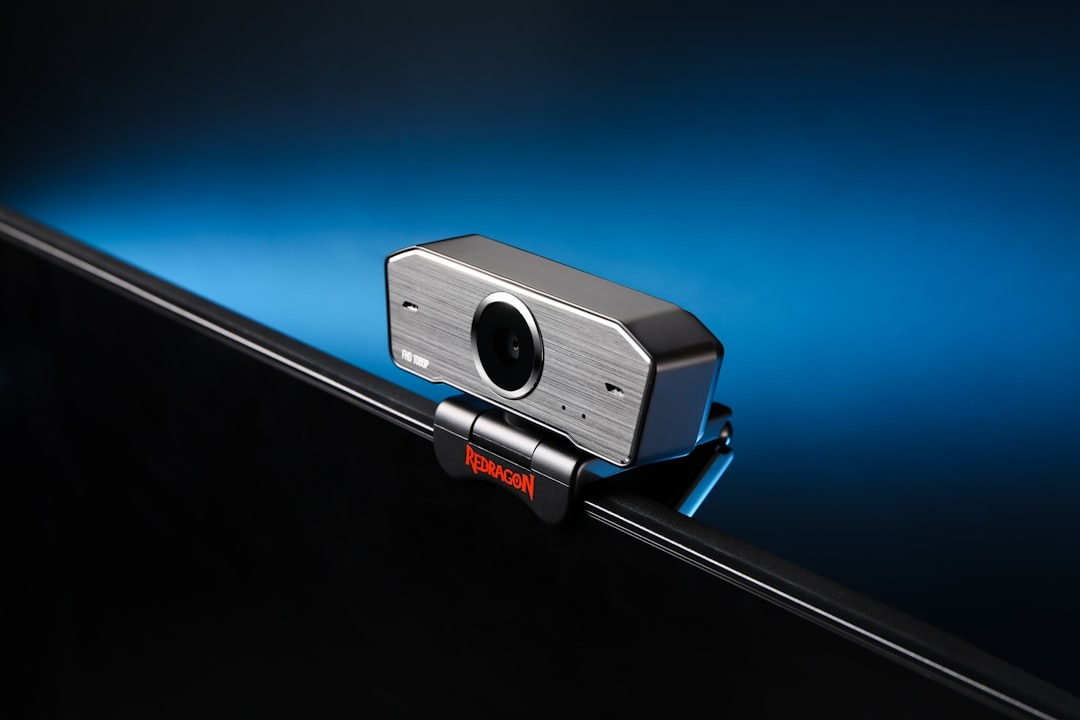
- Webcams and Digital Cameras: Capture images and video using photosensitive sensors that translate light into bits.

3. Output Peripherals: Visualizing and Receiving Results
Output peripherals translate processed data back into a form understandable by humans: text, graphics, sound, or tactile sensations.
The Monitor: Technical Specifications
The monitor is the primary visual output device. It has evolved from bulky Cathode Ray Tubes (CRT) to modern Liquid Crystal Displays (LCD/LED).
Key parameters to know:
- Size: Measured in inches along the screen’s diagonal.
- Resolution: The total number of pixels (width $\times$ height). For example, Full HD is $1920 \times 1080$ pixels. Higher pixel density results in greater sharpness.
- Aspect Ratio: The ratio of width to height (e.g., 16:9 for widescreen, 4:3 for legacy displays).
The Printer
Printers transform digital documents into physical media.
- Inkjet: Sprays microscopic droplets of ink. Excellent for photos and home use.
- Laser: Uses a laser beam and toner (fine powder). It is very fast and ideal for high-volume office printing.
Audio and Tactile Output
- Speakers and Headphones: Reproduce audio output. They can be integrated or external (connected via 3.5mm Jack or USB).
- Tactile Output: Specialized devices like Braille Displays that create physical bumps, allowing visually impaired users to read computer output.


4. I/O Peripherals and Specialized Devices
Some devices perform both input and output functions simultaneously:
- Touchscreen: A monitor (output) that detects touch (input). It is the core of smartphones and tablets.
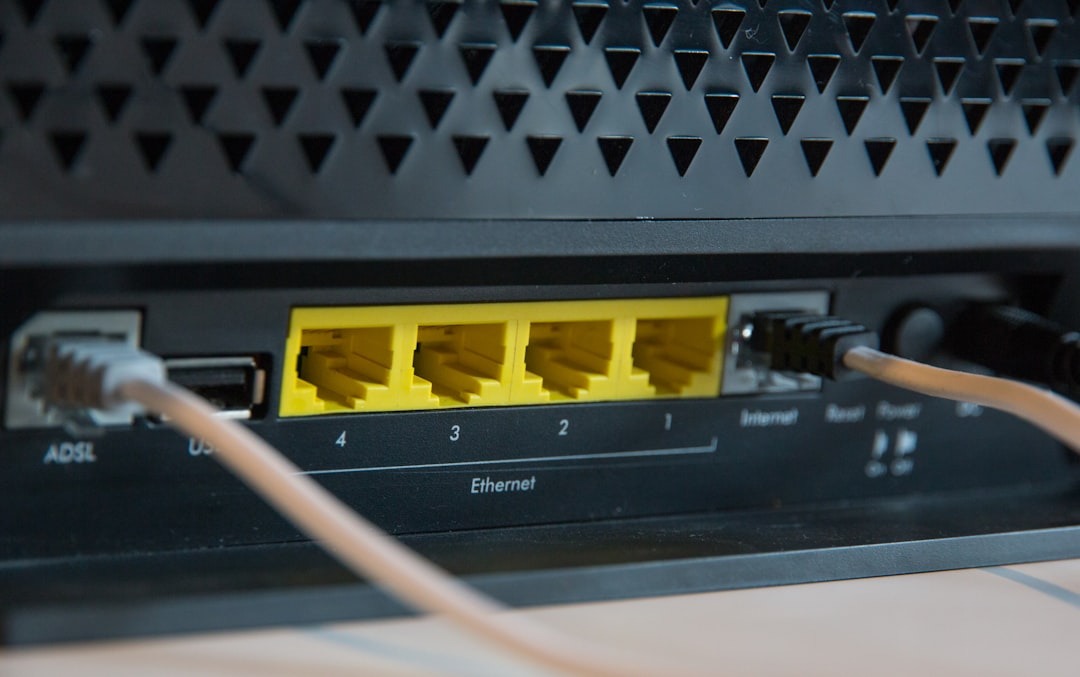
- Modems/Routers: Receive and send data across a network.
- Docking Station (Port Replicator): A device that connects to a laptop to expand its connections, allowing multiple external monitors, hard drives, and peripherals to be linked via a single connector.


5. Connection Ports: The Language of Cables
All peripherals connect to the central unit through Ports. Each has a specific purpose and data transfer speed.
Legacy Ports (Historical)
- Serial: Transmits one bit at a time (old modems).
- Parallel: Transmits 8 bits at a time (old printers).
- PS/2: Small round connectors for mice (green) and keyboards (purple).
Video Ports
- VGA: Analog standard for older monitors.
- DVI: Digital standard, offering better quality than VGA.
- HDMI: The modern standard that carries both High-Definition video and digital audio.
Data and Network Ports
- USB (Universal Serial Bus): The most versatile port. It has evolved from version 1.1 to 3.2 and the modern USB-C, drastically increasing transfer speeds.
- Ethernet (RJ45): For connecting the computer to a Local Area Network (LAN) via cable.
- Firewire (IEEE 1394): Formerly used for digital camcorders due to high speeds.
- SCSI: Used professionally for high-performance hard drives and servers.

Conclusion
Choosing the right peripherals can radically transform the efficiency of a computer system. Whether it is a high-resolution monitor for a designer, a mechanical keyboard for a writer, or Cloud storage for a mobile professional, understanding how these devices communicate with the PC is the key to conscious technology use.
In the next lesson, we will explore Software: how the Operating System coordinates all this hardware to make it intuitive and user-friendly.
Practical Exercise
- Inventory: Look at the back of your PC or the sides of your laptop. How many USB ports can you identify? Is there an HDMI port?
- Resolution: Access your operating system’s display settings and check your current resolution (e.g., $1366 \times 768$ or $1920 \times 1080$).
- Input: Try typing without looking at the keyboard. Can you feel the two small bumps on the ‘F’ and ‘J’ keys? They are there to help you orient your fingers on the QWERTY layout.
Thank you for following this lesson.
INFOGRAPHIC:

