
Welcome to the second lesson of our Computer Essentials module. Following our introduction to the “digital world,” it is now essential to examine the physical architecture that makes this world possible: the Hardware.
Understanding computer anatomy is about more than just memorizing component names; it is about comprehending how electrical energy is transformed into information and how various units collaborate to execute complex instructions in fractions of a second. In this guide, we will explore the heart of our devices, analyzing performance metrics, storage technologies, and data flows.
1. The Motherboard: The System’s Backbone
Every component in a computer must be able to communicate with the others. This communication is orchestrated by the Motherboard (or Mainboard), a complex printed circuit board (PCB) that acts as the central nervous system of the device.
The motherboard houses the integrated circuits that interface the CPU with memory and peripherals. Its quality determines the overall stability of the system and its potential for future expansion. Within the motherboard, we find the Bus—essentially the “highways” upon which bits travel. The wider a bus is (measured in bits), the more communication channels it possesses, increasing the volume of data that can transit within a specific timeframe.


2. The CPU: The Brain and Calculation Engine
The CPU (Central Processing Unit) is the component that has the single greatest impact on system performance. It is responsible for control and calculation, executing the instructions provided by software.
Internal Architecture of the CPU
The CPU is not a monolithic block but is divided into two fundamental logical sections:
- Control Unit (CU): The manager of the processor. It fetches instructions from memory, decodes them (interprets the command), and coordinates other components to ensure execution.
- Arithmetic Logic Unit (ALU): The calculation engine. It physically performs the arithmetic operations (addition, subtraction) and logical operations (comparisons) requested by the CU.
Clock Speed and Cores: Understanding Performance
Modern CPU performance is determined by two primary factors:
- Clock Speed: Expressed in Hertz (Hz), this represents the number of calculation cycles per second. If a CPU operates at 3 GHz, it can execute over 3 billion operations per second.
- Number of Cores: Today, CPUs are “multi-core” (Dual-core, Quad-core, Octa-core). This means that multiple independent processors are housed within a single physical package.
Technical Note: A high clock speed on fewer cores is ideal for single-threaded, fast tasks. However, a higher core count is preferable for multitasking and professional applications (such as video editing or scientific computing). A CPU with many cores but a low clock speed might actually perform slower in certain tasks than a CPU with fewer, faster cores.
Cache Memory
To mitigate the speed gap between the CPU and the RAM (which we will discuss shortly), the processor utilizes Cache Memory. This is a tiny but extremely fast memory located directly on the CPU chip. it stores the most frequently used data, significantly reducing waiting times.


3. The Memory Hierarchy: RAM, ROM, and Cache
In computer science, not all memory is created equal. There is a sharp distinction between primary memory and mass storage.
RAM (Random Access Memory)
RAM is the system’s primary memory and is defined as volatile. This means its content is instantly erased when the computer is powered off.
- Function: It hosts running programs and the data associated with them.
- Performance: The more RAM available (measured in GB), the more programs can run simultaneously without slowdowns.
- The Swap Phenomenon: When RAM is full, the operating system uses a portion of the hard drive as “virtual memory” (a process known as swapping). Since a disk is much slower than RAM, the user will experience a significant system slowdown.
ROM (Read-Only Memory)
Unlike RAM, ROM is non-volatile and primarily used for reading. It contains the fundamental instructions for booting the machine, without which the operating system could not load. Common variants of ROM include:
- PROM: Programmable once.
- EPROM and EEPROM: Erasable and reprogrammable via UV light or electrical pulses (used for updating the BIOS or Firmware).


4. Memorie di Massa e 4. Mass Storage and Permanent Archiving
Mass storage devices are designed to preserve data permanently. The primary distinction here lies between magnetic and solid-state technologies.
Hard Disk Drive (HDD) vs. Solid State Drive (SSD)
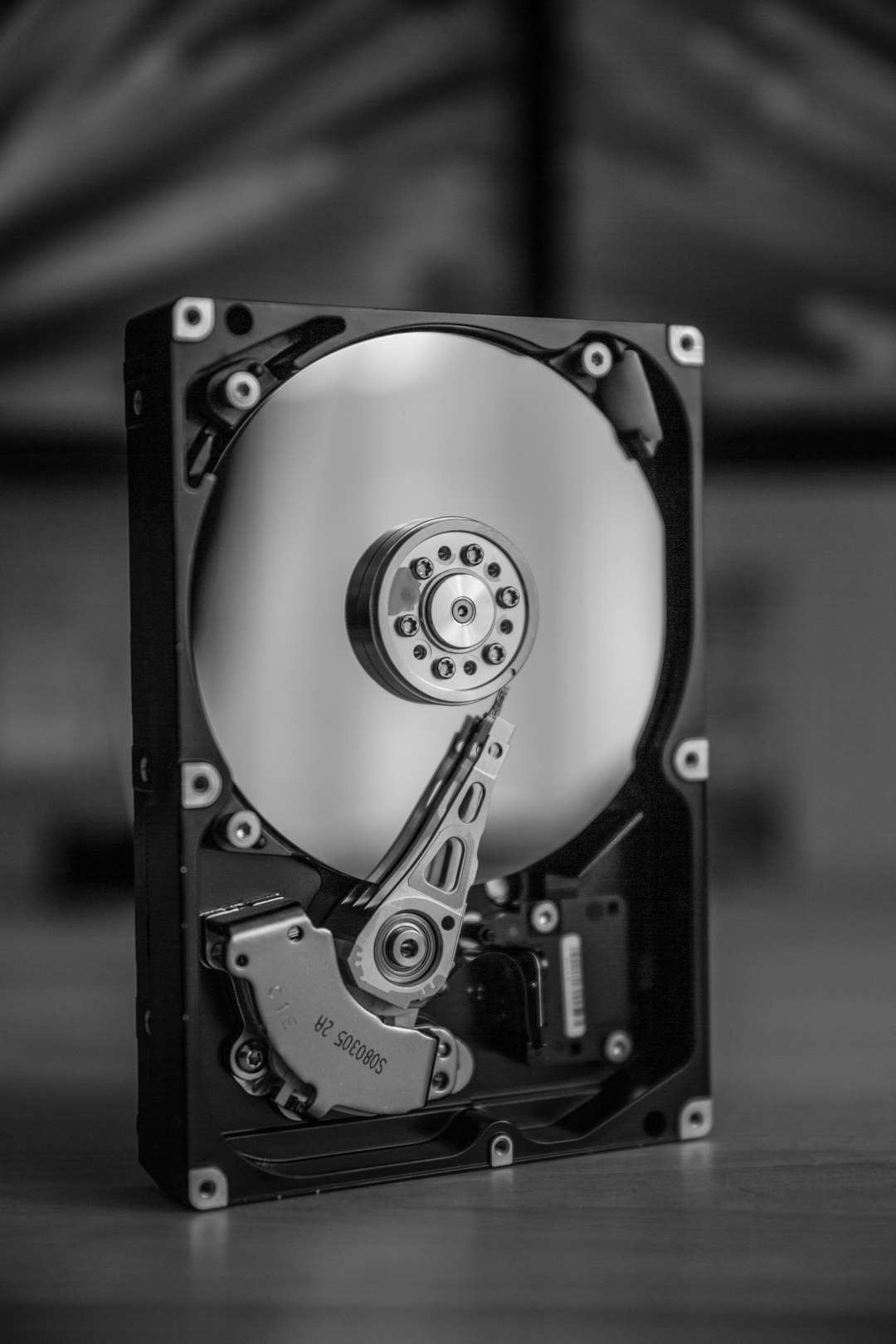
- Magnetic Hard Disk (HDD): Composed of spinning platters and a mechanical arm. Data is written on tracks and sectors. It is cost-effective but slow and susceptible to mechanical wear.
- Solid State Drive (SSD): Contains no moving parts. It utilizes flash memory, making it incredibly faster, quieter, and more resistant to physical shock, albeit at a higher cost per gigabyte.
The File System and Data Management
The File System is the component of the operating system that organizes data on mass storage. The most common are FAT32 (universal but limited) and NTFS (modern and secure). Data organization occurs through “tree” structures or indexing tables. When saving a file, the system seeks free space based on three criteria:
- First Fit: Uses the first available slot large enough for the file.
- Best Fit: Searches for the slot that best fits the file size (to minimize wasted space).
- Worst Fit: Uses the largest available slot.
Paging and Fragmentation
All file systems utilize Paging: memory is divided into “pages” or clusters. If a file is smaller than a cluster, internal fragmentation (wasted space) occurs. Conversely, if files are saved in fragmented pieces across the disk, external fragmentation occurs, slowing down read speeds. This is why it is vital to perform periodic defragmentation (specifically on magnetic disks).

5. Units of Information Measurement
To navigate the hardware world competently, one must master the scale of bits. The Bit (Binary Information Unit) is the smallest unit: it can only be 0 or 1.
Here is the fundamental conversion table (based on multiples of 1024):
- 8 Bits = 1 Byte
- 1024 Bytes = 1 Kilobyte (KB)
- 1024 KB = 1 Megabyte (MB)
- 1024 MB = 1 Gigabyte (GB)
- 1024 GB = 1 Terabyte (TB)
Understanding these magnitudes is essential for evaluating disk capacity or connection speeds.


6. Input and Output Peripherals: Communication
Peripherals facilitate the interaction between the user and the machine.
- Input: Keyboards, mice, scanners, microphones. Used to enter data.
- Output: Monitors, printers, speakers. Used to return the results of processing.
- The Graphics Card (GPU): Often overlooked, the GPU is essentially a computer within the computer. It possesses its own processor and dedicated RAM to process pixels. Its power determines the resolution and fluidity of images on the screen.


7. Optimization and Maintenance: Practical Tips
A computer’s performance depends not only on its hardware but also on how we manage it. Here are some golden rules to keep your system fast:
- RAM Management: Avoid unnecessary programs running in the background (such as animated wallpapers), which drain CPU cycles and RAM space.
- Disk Cleanup: Regularly empty the recycle bin. Deleted files do not disappear immediately; the record is removed, but the data remains until overwritten. An overfilled disk slows down the entire system.
- Clean Desktop: Avoid saving too many files directly on your desktop. The operating system must manage each icon as an active element, which can lag the interface.
- Security: Viruses and malware use system resources for malicious purposes. Using an Antivirus and a Firewall is indispensable for protecting both your data and your performance.


Conclusion
We have seen that a computer is a complex ecosystem where every part depends on the others. The CPU calculates, the RAM remembers temporarily, the bus transports, and mass storage preserves. A bottleneck in just one of these elements can compromise the entire user experience.
Being aware of what happens “under the hood” of our PC makes us better users, capable of choosing the right hardware for our needs and resolving common issues without panic.
Lesson Exercise
- Check how much RAM your computer has and which CPU it uses (you can find this in “About this PC” or “Task Manager”).
- Verify the type of hard drive (HDD or SSD) and how much free space remains.
- Try to identify which applications launch automatically upon startup and evaluate if they are all necessary.
Thanks for watching this lesson. In the next one, we’ll see how software takes control of all this hardware power!
INFOGRAPHIC:

